Layer a pad under your Nord Stage 4 piano
Pick your Stage 4's own programs by name, lay a sound we recorded and tuned under them, and move from verse to chorus without touching the panel.
Your Stage 4's programs, by name
The Nord Stage 4 already holds the sounds you chose it for. KeyLayers runs them from your phone, iPad or Mac, so you can pick one by name and lay one of ours under it, all from one screen.
Plug the Stage 4 in with a USB-C to USB-B cable and open KeyLayers. Tap a layer, then Sound. The picker has two lists: Your keyboard and KeyLayers. Under Your keyboard you find the Stage 4's programs by their slot, such as Program A:11, and its piano, organ and synth presets, such as Piano preset 1. Each layer says whose sound it is, so you always know which one is coming from the keyboard and which from us.
Layer two sounds
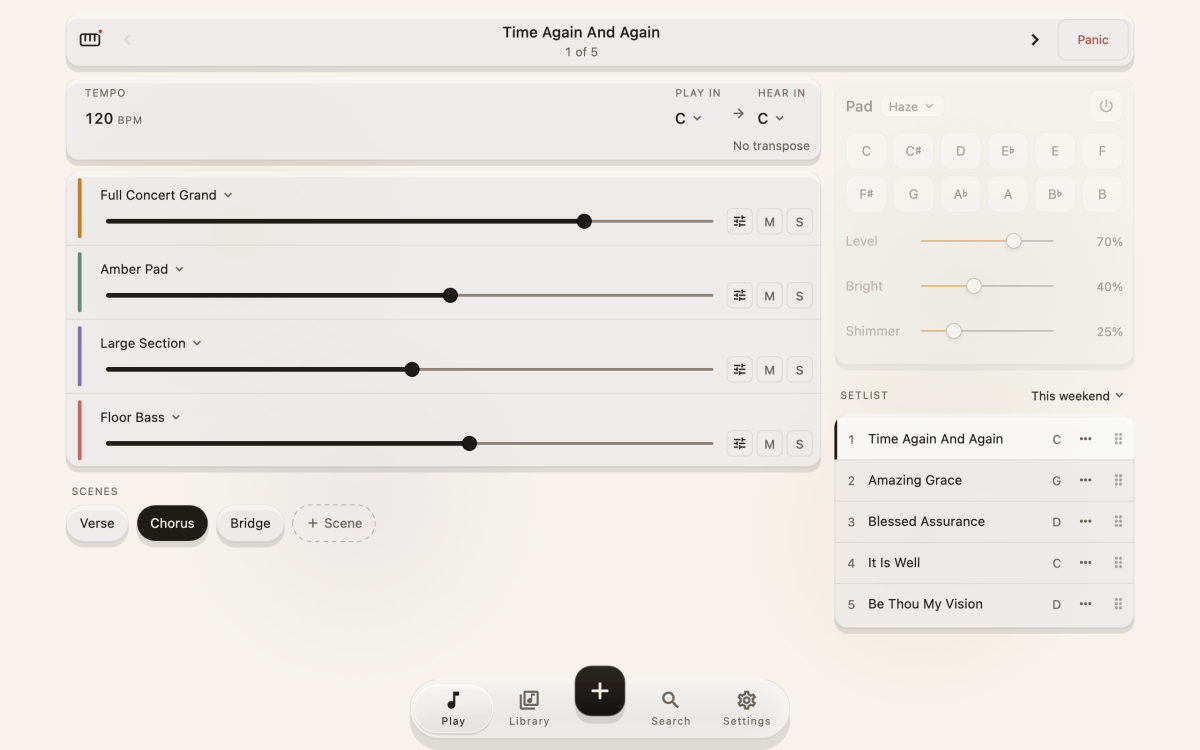
A song in KeyLayers has four layers. A good place to start on the Stage 4:
- Layer 1: one of your piano presets.
- Layer 2: Amber Pad, one of our pads, a little quieter.
- Leave layers 3 and 4 empty for now, or add Floor Bass below middle C.
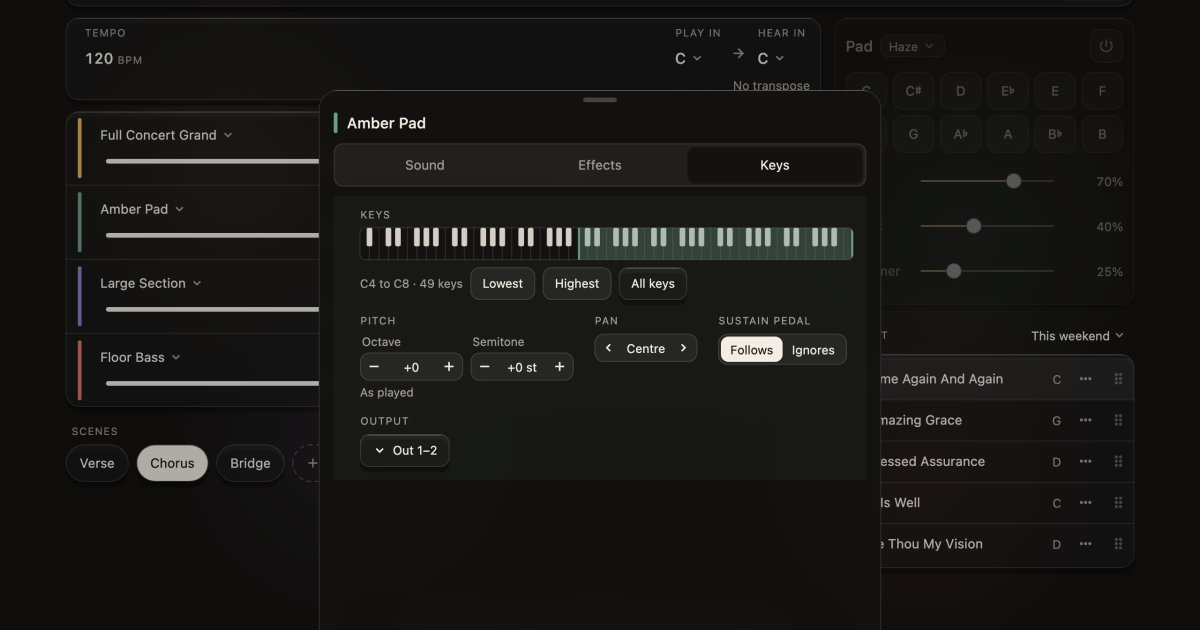
Tap a layer’s settings to open its sheet. Under Keys you choose its range (Lowest, Highest or All keys), its octave and semitone, its pan, and whether it follows the sustain pedal. Put the pad on the top half of the keyboard and the bass on the bottom, and one hand plays each. Every layer has its own volume, mute and solo on the Play screen, so you can bring the pad up for a quiet verse without stopping.
Scenes for verse, chorus and bridge
Set the layers the way you want the verse, then save it as a scene. Change them for the chorus and save again. During the song, tap Chorus and the layers glide there in time, or cut clean if you prefer. A footswitch can move you on to the next scene or song, so your hands stay on the keys. It works the same for the gig, the band, the studio and the Sunday service.
The pad, ready in any key
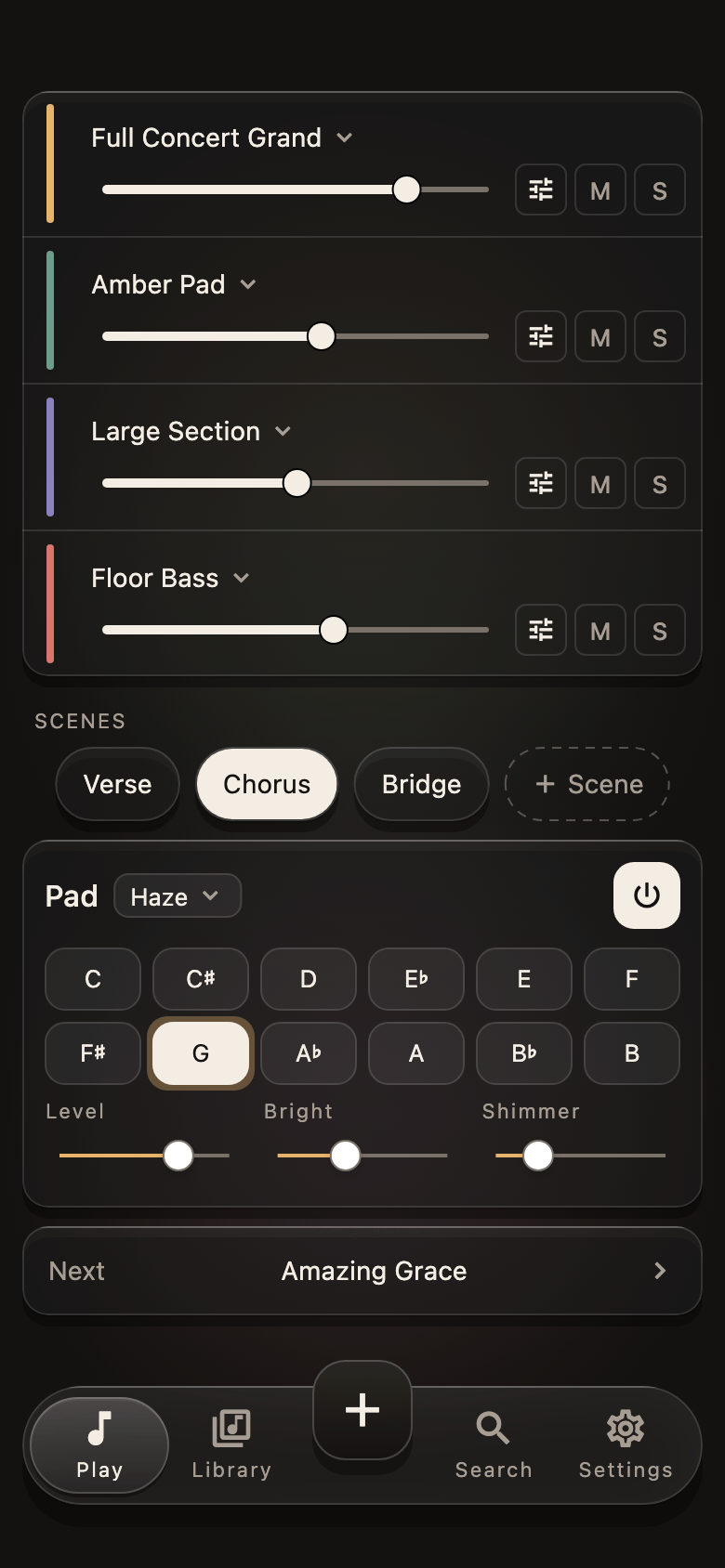
The pad sits under the scenes on Play. Pick a pad sound such as Haze, tap the song’s key, and it holds that note under everything you play. Level, Bright and Shimmer shape it. It plays with nothing plugged in, so you can set it up before you reach the stage.
How we make the sounds you layer
We design and produce our own sounds: pads, keys, strings, bass, brass, bells and leads, made to sit under the sounds of the keyboard you already own. Making one takes longer than most people guess.
Every note, at every strength
A keyboard sound changes with how hard you play, so we record it the same way. This week we recorded an electric grand again at eight strengths, on every third key from the bottom of the range to the top: 200 notes and 40 minutes at the instrument. Another keys sound took 150 notes and 23 minutes. Each recording is checked note by note: every note starts at the same moment, none is clipped, every key rises from soft to hard, and the pitch stays within a few cents.
Quiet underneath
When a faint hum showed up under the recordings, we fixed it at the source and recorded the instrument again. The floor under the new takes is far quieter than before, so a soft note fades into silence rather than into noise.
Nothing thrown away
We keep the recordings at full quality rather than shrinking them to save room. Only the start of each note waits in memory, and the rest is read as you play, so a large sound stays playable without cutting corners.
Levels you can trust
We measure each sound’s loudness so one does not jump out above the others when you switch. Some are tuned by ear instead: Floor Bass keeps the level it was set to by listening, because that is where it sits best under a piano.
Try it on your Stage 4
See everything a layer can do on Features, the setup step by step on How it works, and every keyboard we know by name on Keyboards. New posts land on What’s new.