What's new in KeyLayers: a calmer Settings and Library
A shorter Settings screen, a Library that names your keyboard, and a banner on Play when Support has replied. What KeyLayers players will notice this week.
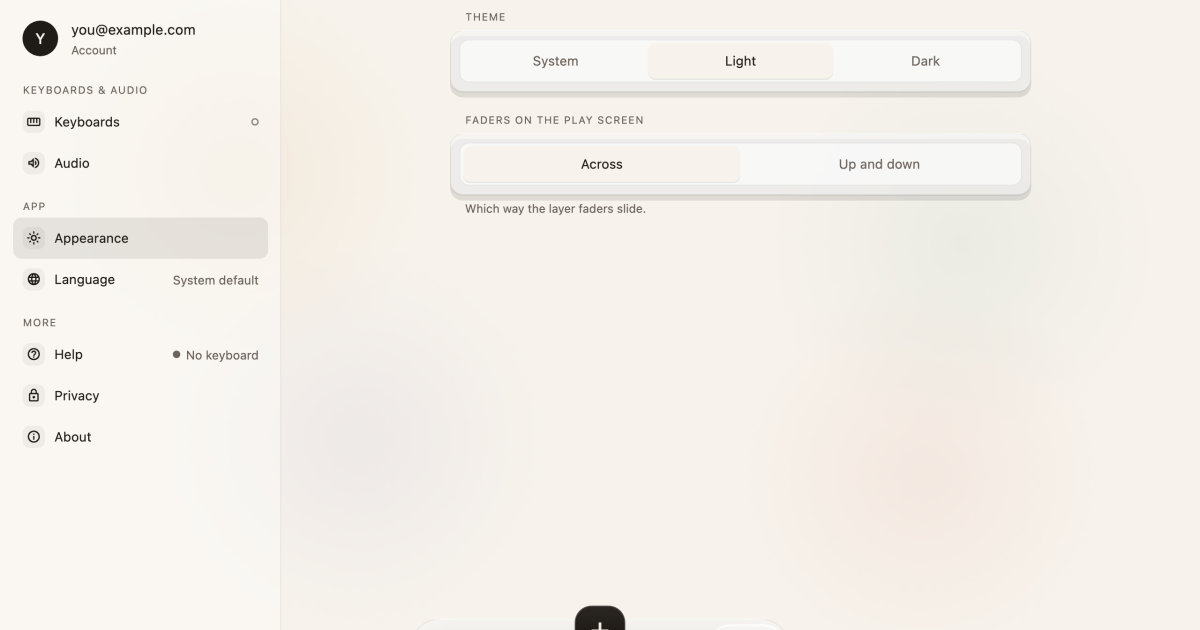
This week’s changes are about finding things faster. Settings has fewer things in it, the Library is easier to browse, and a reply from Support now shows up where you are already looking.
A shorter Settings screen
Settings had grown long. This week it was cut down to the pages you actually use, and each one now has its own place in a short list.
On a Mac or iPad the list sits on the left and the page you pick opens beside it. The groups are:
- Keyboards and audio: your keyboard and how KeyLayers plays sound.
- App: Appearance and Language.
- More: Help, Privacy and About.
Appearance is where you choose Light, Dark or System, and which way the layer faders slide on the Play screen: across or up and down. If you set up your keyboard once and rarely touch it again, you will now reach the part you want in one tap.
Some things that used to sit in Settings have moved to the page where they belong, so they are found where you would look for them. If you cannot spot something you used before, check the page it relates to, such as Keyboards for anything about your keyboard.
A Library that names your keyboard
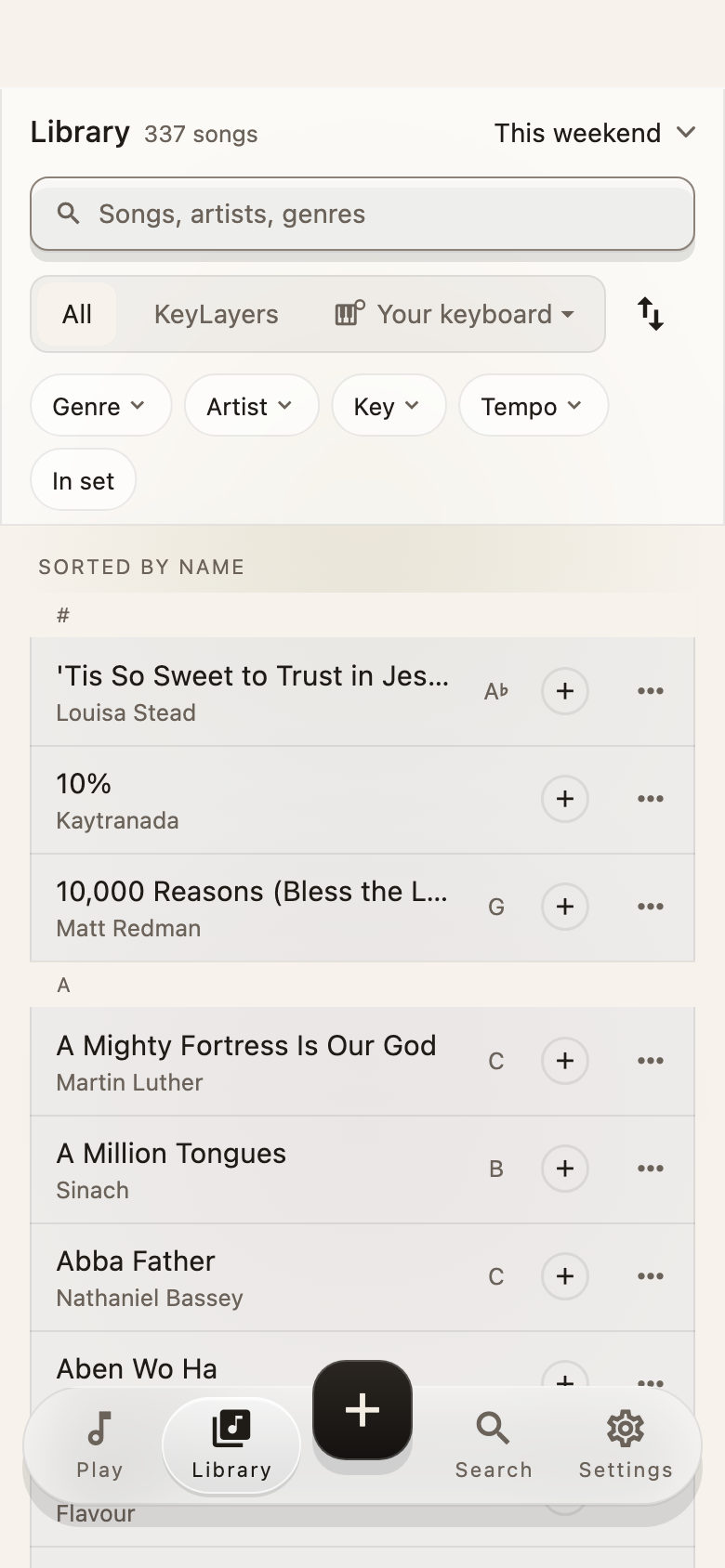
The Library is back to the layout many players liked: every song in a clear list, with its name and artist, sorted alphabetically. The filters across the top are Genre, Artist, Key and Tempo, plus In set to show what is already in this weekend’s set. On a Mac or iPad you also get a side panel and a table for more room.
The new part is the switch above the list. It reads All, KeyLayers, and then your keyboard by its own name. Pick:
- All to see everything in one place.
- KeyLayers to see the songs with KeyLayers sounds.
- Your keyboard to see the songs that use sounds from your keyboard.
A small keyboard mark on a song in All tells you it carries your keyboard’s own sounds. Each song also has a menu with Reset and Delete. When you duplicate a song, KeyLayers asks for a name and will not let you reuse one you already have, so you never end up with two songs that look the same.
To find out how songs, sounds and layers fit together, read How it works. The Features page lists what else is in the app.
A banner when Support replies
If you wrote to Support, you no longer have to open the chat to find out whether anyone answered. When you open KeyLayers, or come back to it, and there is a reply you have not seen, a notice appears at the top of the Play screen. It says Support replied, how many new messages there are, and shows the first line of the reply.
The notice is kept out of your way while you play. It does not appear while a key or the pedal is down, and it waits until you have been still for a few seconds. On the phone, your song row and layers move down to make room. On a Mac or iPad, the pad and set list move down instead, so it never covers the first song in your set.
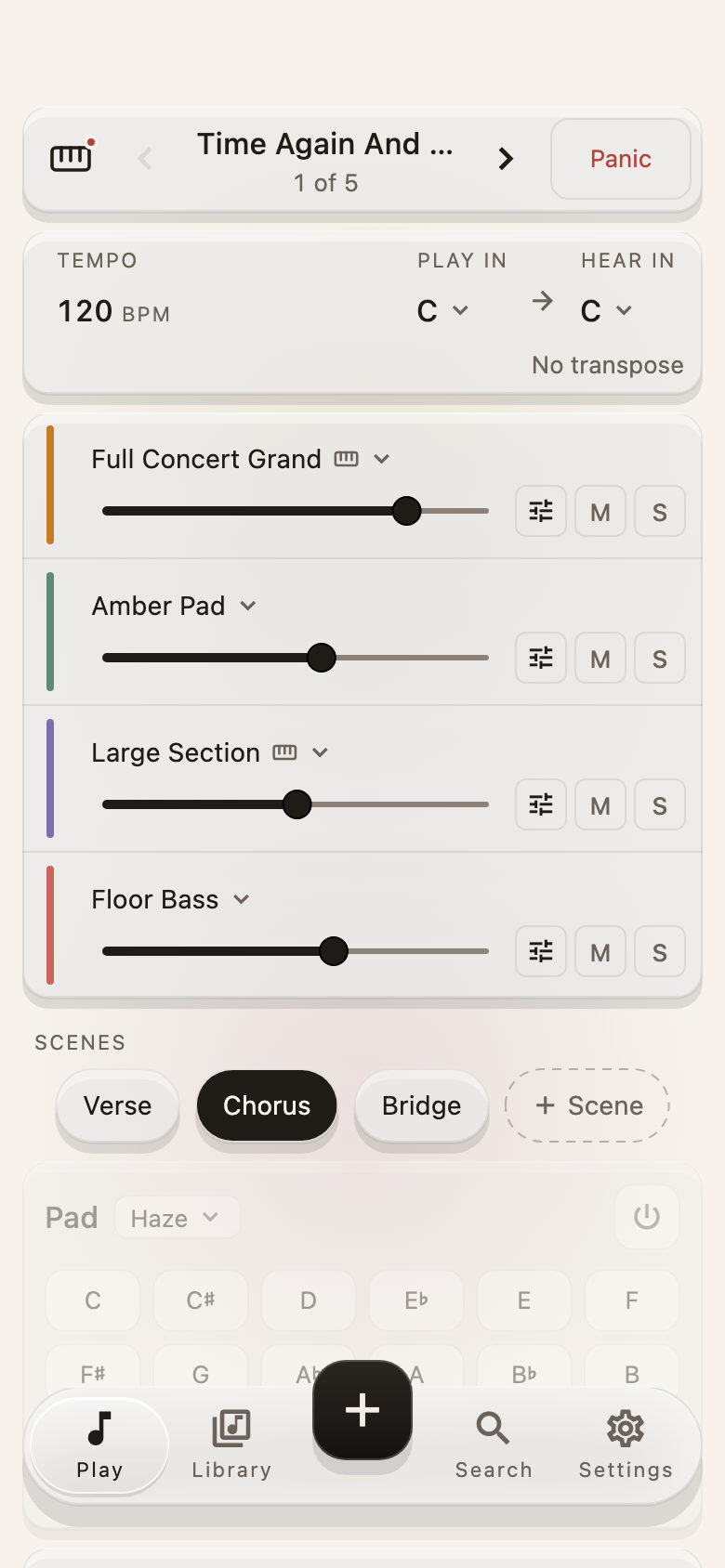
The notice goes away after a few seconds, and it stays while your finger or pointer is on it, so you have time to read it.
Where to look
Open Settings to see the shorter list, and open the Library to try the new switch. If your keyboard is not named there, check the Keyboards page to see how KeyLayers works with it. You can always find earlier changes on What’s new.