KeyLayers on your Roland V-STAGE: cable to first song
Plug in your V-STAGE, pick its own tones by name, lay a pad under them and play your first song with KeyLayers. Step by step.
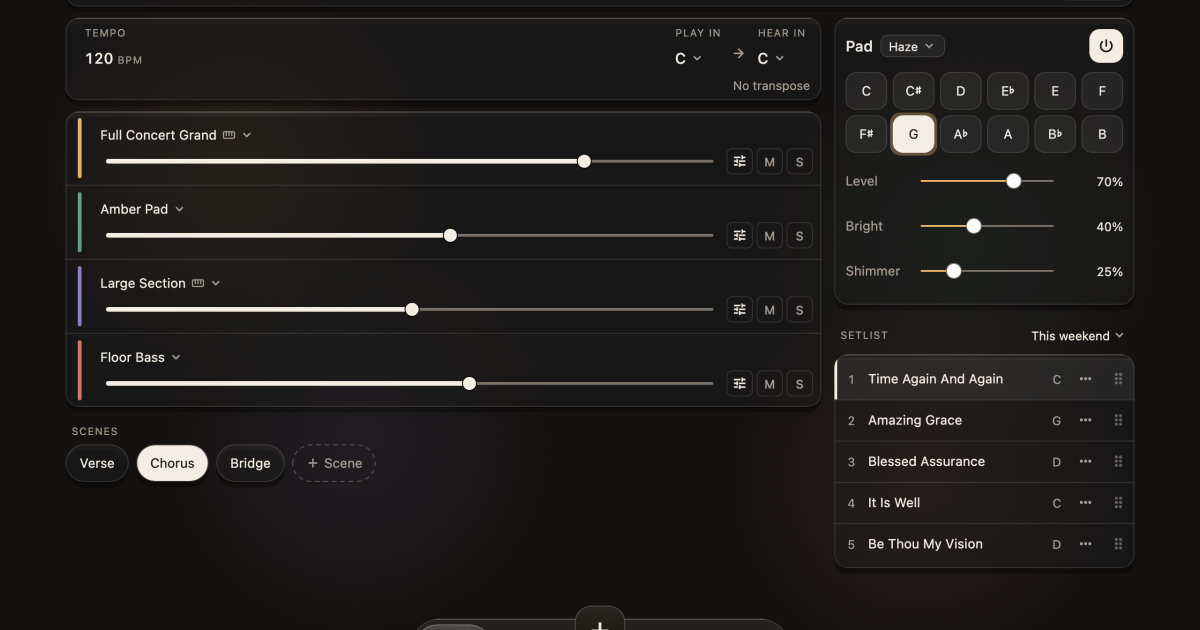
If you play a Roland V-STAGE, you already own the sounds. KeyLayers plays that keyboard’s own tones by name from your phone, iPad or Mac, then lets you layer sounds we design on top. This is the whole path, from the cable to your first song.
What you need
- Your V-STAGE.
- A USB cable that fits your keyboard’s USB port at one end and your phone, iPad or Mac at the other. Your keyboard connects by USB alone.
- KeyLayers on your phone, iPad or Mac.
Nothing else goes between them. No extra box, no menus to dive into on the keyboard.
Step 1: plug in
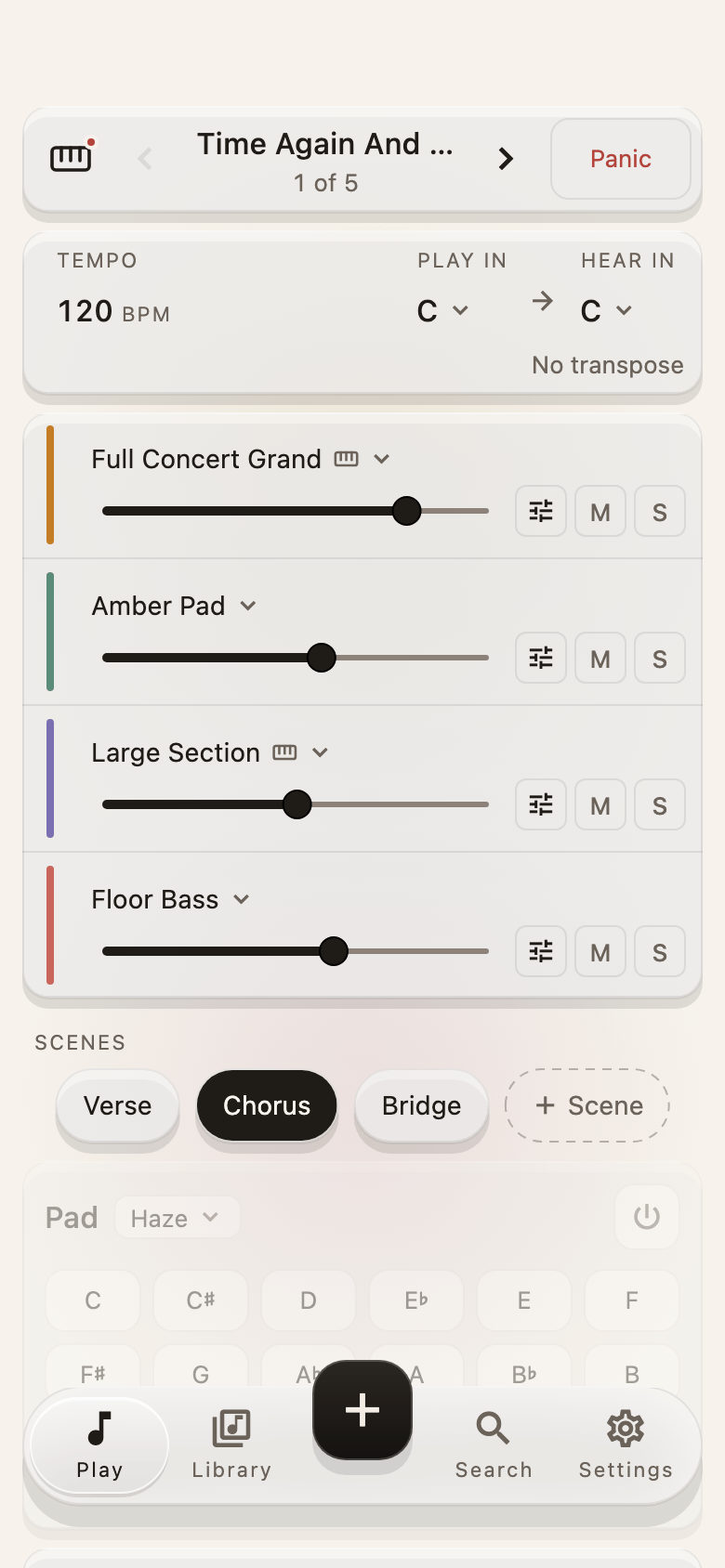
Connect the cable from the V-STAGE to your device and switch the keyboard on. Open KeyLayers and go to Play. The small keyboard icon at the top left tells you whether it sees your keyboard.
If the app does not know the name yet, tap Which keyboard is this? on the keyboard’s card and choose your V-STAGE from the list. Tap Use this keyboard and it is remembered, so next time it is found the moment you plug in.
Step 2: pick your keyboard’s own tones
On Play, every layer has a sound name. Tap one and the sound picker opens. Under Your keyboard you see the tones the V-STAGE holds, by name: search for Stage Grand and pick it, and the keyboard plays it. You do not need to remember a number or scroll through banks on the keyboard itself.
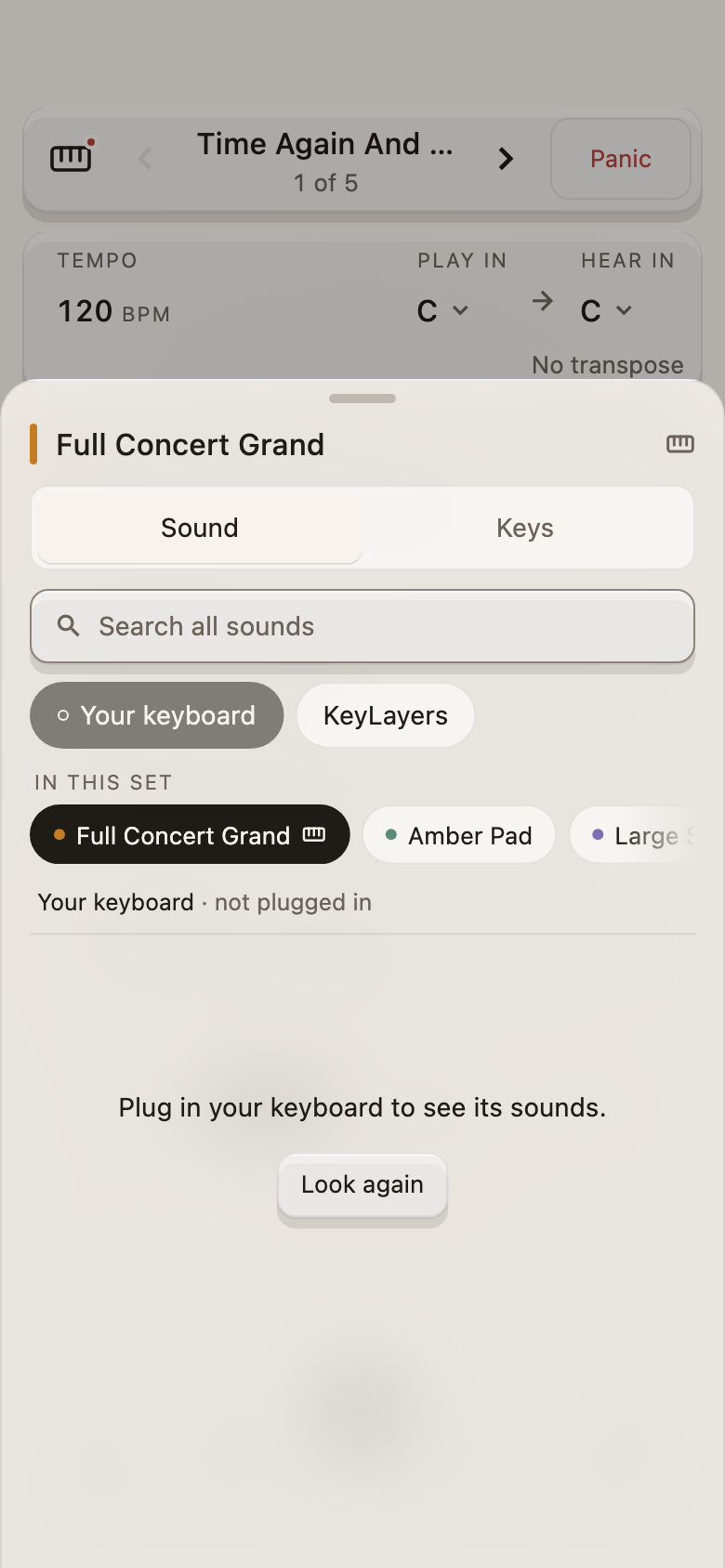
If the list says to plug in your keyboard, check the cable and tap Look again.
Every layer says whose sound it is. A small keyboard mark means it comes from your keyboard. No mark means it is one of ours.
Step 3: layer a sound of ours underneath
A song holds four layers. Make the first one your V-STAGE grand piano. On the second, open the picker again and choose KeyLayers. Pick Amber Pad. Now one key press plays both.
Each layer has its own volume slider, a mute button (M) and a solo button (S). Tap the sliders icon on a layer and its Keys tab lets you set the lowest and highest key it answers to, shift it by an octave, and choose whether it follows your sustain pedal. Floor Bass on the left hand and a pad across the whole keyboard is a good first set.
Step 4: make scenes for the song
Songs change feel. Scenes sit under the layers: Verse, Chorus, Bridge, or any names you like. Set the piano and pad quieter for the verse, bring the strings and bass up for the chorus, and tap a scene to move between them while you play.
Step 5: play your first song
Open Library, pick a song or add one, and it loads with its layers and scenes. The setlist keeps your songs in order, so you move from one to the next without touching the keyboard’s own screen. If anything rings on, Panic stops every note.
A song can also be requested: name it, say what you want on each layer, and we set it up with your keyboard’s sounds and ours. See Features for how requests work.
A pad for the gaps
The pad plays on its own too. Choose a key, set its level, brightness and shimmer, and hold a warm sound under a prayer, a transition or a quiet moment while your hands are free.
Where to go next
See How it works for the longer story, or check Keyboards to see the other keyboards we know. Full release notes are on What’s new.